Key Takeaways
- A complete CCTV remote viewing setup needs an NVR/DVR hardwired to your router — WiFi-only recorders can't be reached outside your local network.
- Hikvision uses Hik-Connect, Dahua uses DMSS, Uniview uses EZView and Axis uses AXIS Companion; all are free on AU app stores.
- Enable Platform Access/P2P in your recorder's network menu before pairing your phone — this avoids manual port forwarding entirely.
- Test remote viewing on 4G/5G mobile data, never home WiFi, where apps connect locally even when internet access is broken.
- Double NAT from NBN modems is the top cause of failed remote connections in Australia; fix it with Bridge Mode or consistent port rules.
- Change default passwords like admin/12345 immediately and enable two-factor authentication to keep remote access secure.
Can You Really Watch Your CCTV Cameras From Anywhere in Australia?
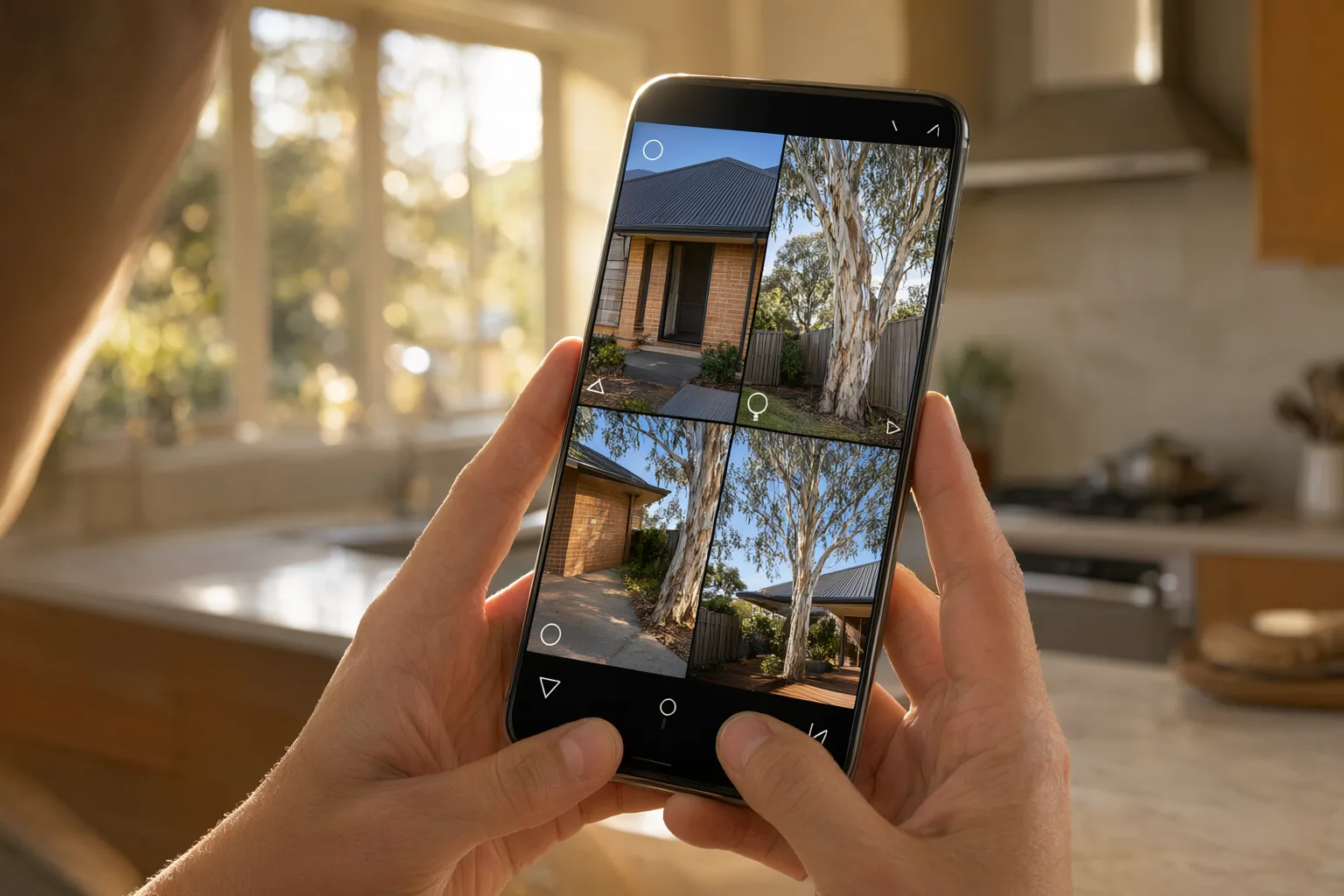
Yes — with a properly configured NVR or DVR, an internet connection and the manufacturer's official app, you can complete a CCTV remote viewing setup that lets you watch live and recorded footage from anywhere in Australia or overseas. Whether you're checking on your Newcastle home at work, monitoring a farm shed from town, or keeping an eye on an Adelaide warehouse after hours, remote viewing turns passive recording into active security you carry in your pocket.
The good news is that modern systems from the four major professional brands — Hikvision, Dahua, Uniview and Axis — all support smartphone access through free, purpose-built apps. The setup process follows the same broad pattern regardless of brand: connect your recorder to the internet, enable the manufacturer's cloud service (or configure port forwarding), pair your phone via QR code, and test the connection on mobile data.
This guide walks through each stage in detail, including the network requirements specific to Australian NBN connections, the troubleshooting steps for common issues like double NAT on NBN modems, and the security practices that keep your cameras protected once they're online.
What You Need Before Starting Your CCTV Remote Viewing Setup
Before touching any settings, confirm you have the essential building blocks in place. First and most importantly, your CCTV system needs a Network Video Recorder (NVR) or Digital Video Recorder (DVR) physically connected to your internet router with an Ethernet cable. This wired link is the backbone of [[remote-configuration-of-cctv-systems-how-installers-manage-your-cameras-off-site|remote]] access — without it, your cameras exist only on your local network and can't be reached from outside.
Second, you need a stable internet connection with adequate upload speed. For smooth high-definition viewing, aim for roughly 2–4 Mbps of upload bandwidth per camera you'll watch simultaneously. Most Australian NBN plans handle this comfortably, but if you're on a regional property relying on 4G or fixed wireless, check your data allowance first — video streaming consumes bandwidth quickly and can chew through a monthly cap.
Third, gather your login credentials. Your NVR/DVR username and password are usually printed on a sticker on the unit itself or documented in your [[installing-security-cameras-in-cyclone-prone-areas-what-you-need-to-know|installation]] paperwork. Finally, identify which brand of system you own, because each manufacturer uses its own dedicated app — using the wrong one simply won't work.
Which App Do You Download for Your Camera Brand?
Every professional CCTV manufacturer provides a free official mobile application, and matching the app to your hardware is critical. Third-party apps often lack [[what-is-the-ideal-mounting-height-for-home-security-cameras-in-australia|security]] features and typically can't support advanced functions such as AcuSense AI person detection alerts or ColorVu colour night vision playback.
If you have a Hikvision system, download Hik-Connect from the Apple App Store or Google Play Store. Dahua owners need DMSS (Dahua Mobile Surveillance System). Uniview users should install EZView, while Axis camera owners use AXIS Companion. All four are free to download, though some offer optional paid cloud storage subscriptions if you want off-site backup of recordings.
Once installed, create an account inside the app using a valid email address. Choose a strong, unique password — this account becomes the gateway to your entire security system, so treat it with the same seriousness as your online banking credentials. Avoid reusing passwords from other services. Australia's extreme UV, coastal salt air, and summer heat demand weatherproof housings — IP66-rated cameras handle [[/newcastle|Newcastle]]'s humidity and [[/adelaide|Adelaide]]'s 40°C+ days.
Should You Hardwire Your Recorder to the Internet?
Your NVR or DVR must be able to talk to the internet before remote viewing will function. Run an Ethernet cable from the LAN port on the recorder directly into a spare port on your router. Where possible, avoid powerline adapters and WiFi bridges — a hardwired connection is far more reliable, particularly during Australian summer storms when power fluctuations and interference can disrupt wireless links.
Power up the recorder and open its settings menu using a monitor and mouse connected to the unit. Head to the Network settings section. Most modern Hikvision, Dahua and Uniview recorders will automatically obtain an IP address from your router via DHCP. Write down this IP address, as you may need it later for port forwarding or troubleshooting.
If your system uses a static IP address — common in commercial installations — make sure it sits within your router's subnet range and doesn't clash with another device on the network. A professional installer should have documented these details during handover; if not, it's worth recording them now for future maintenance visits.
Is P2P Platform Access Enabled on Your Recorder?
Inside your recorder's settings menu, find the Platform Access or P2P (Peer-to-Peer) settings. This is where you switch on the manufacturer's cloud service, which allows secure remote connections without complicated router configuration.
The menu path varies slightly by brand. On Hikvision systems, go to Configuration > Network > Advanced Settings > Platform Access and enable Hik-Connect — a QR code will appear on screen. Dahua units offer a similar option under Settings > Network > P2P, also displaying a QR code for the DMSS app. Uniview recorders show it under System > Network > EZCloud, while Axis systems use the built-in pairing process within AXIS Companion.
That QR code is your system's unique identifier, so leave the screen displayed — you'll scan it with your phone in the next step. If no QR code appears, your firmware is likely out of date. Firmware updates deliver important security patches as well as new features, and a professional technician can bring your system current during a routine maintenance visit.
Can You Pair Your Phone With the Recorder by QR Code?
Open the app you downloaded earlier and sign in to your account. Look for the option to add a new device — usually marked with a '+' symbol or an 'Add Device' button — and choose the scan QR code option.
Point your phone's camera at the QR code shown on your recorder's monitor. The app should recognise it within a second or two and populate the device details automatically. You'll then be asked to enter the recorder's username and password — the same credentials you use to log in locally at the unit.
Give the device a memorable name such as 'Home Security' or 'Warehouse Cameras'. This is especially handy if you manage multiple properties, since each site gets its own entry in the app. Once saved, the app will attempt its first connection, which can take 30–60 seconds while it establishes a secure encrypted tunnel between your phone and your recorder.
Do You Need Port Forwarding When P2P Isn't Available?
Some older systems don't support P2P cloud services, and some owners prefer a direct connection for privacy reasons. In those cases, port forwarding on your router is the alternative. It demands more technical confidence but gives you complete control over how your data travels.
Log into your router's admin panel — typically by entering 192.168.1.1 or 192.168.0.1 into a web browser. Find the Port Forwarding section, which varies by brand but usually lives under Advanced Settings or NAT. You'll generally need to forward two ports: the HTTP port (commonly 80 or 8000) and the Server/RTSP port (usually 8000 or 554 for Hikvision — check your manual for other brands). Forward both to your recorder's local IP address.
Be under no illusions: port forwarding exposes your system to the wider internet, so changing default passwords and keeping firmware updated isn't optional — it's essential. Many Australian businesses engage professionals for this configuration to ensure their setup meets cybersecurity expectations and doesn't become an easy target for automated scanning.
Are You Testing Remote Viewing Correctly on Mobile Data?
The single most important test is accessing your cameras while NOT connected to your home or business WiFi. Switch your phone to mobile data (4G or 5G), open your CCTV app, and check whether live video appears within a few seconds. If it does, your remote access is genuinely working — many people mistakenly test on WiFi, where the app connects locally even when internet-side access is broken.
Test every camera individually to confirm each one streams correctly, and check both live view and playback. Some network configurations allow live streaming but block access to recorded footage, so verify both. If your system includes advanced analytics such as AcuSense person detection or ANPR number plate recognition, confirm those alerts are arriving on your phone as push notifications.
Finally, try viewing from different locations and at different times of day. If video buffers or drops out during peak evening hours, your upload speed may be insufficient, or the recorder's bitrate settings may need adjustment. Professional optimisation of stream quality and sub-stream resolution makes a noticeable difference here.
Why Won't Remote Viewing Connect? Troubleshooting Common Problems
If you can't connect remotely, the most frequent culprit is a double NAT situation — two routers creating separate networks, which commonly happens with NBN modems that include built-in routing. The fix is to place one device into Bridge Mode, or to configure port forwarding rules on both devices consistently.
Dynamic IP addresses cause another classic failure. Most Australian residential connections use dynamic IPs that change periodically, and if you rely on port forwarding, your remote access breaks every time the address changes. Setting up a Dynamic DNS (DDNS) service solves this — most professional CCTV systems support DDNS natively in their network menus.
Slow or constantly buffering video usually points to bandwidth limits. Run a speed test to check your upload speed, and consider reducing the sub-stream resolution in your NVR settings. The sub-stream is a lower-bandwidth feed designed specifically for remote viewing, letting you watch smoothly on mobile data while the full-quality stream continues recording locally.
How Do You Keep Your Remote Access Secure?
Convenience brings responsibility. Change default passwords immediately — combinations like 'admin' and '12345' are the first things attackers try. Use a password manager to generate and store complex, unique passwords for both your recorder and your mobile app account.
Enable two-factor authentication wherever your system supports it. Hik-Connect, DMSS and EZView all offer 2FA options that send a verification code to your email or phone before granting access. This single step blocks the vast majority of unauthorised access attempts, even if a password leaks.
Keep firmware current. Manufacturers regularly release patches addressing newly discovered vulnerabilities, and outdated recorders are actively scanned for on the internet. During a professional maintenance visit, technicians can update firmware across your whole system and verify every security setting — particularly valuable for businesses carrying compliance obligations around surveillance and data handling.
Mobile Apps by CCTV Brand
| Brand | App Name | Key Features | Cloud Storage |
|---|---|---|---|
| Hikvision | Hik-Connect | Live view, playback, AcuSense alerts, ColorVu support | Optional subscription |
| Dahua | DMSS | Live view, playback, push notifications, multi-site management | Optional subscription |
| Uniview | EZView | Live view, playback, Starlight optimisation, PTZ control | Optional subscription |
| Axis | AXIS Companion | Live view, playback, edge storage access, Zipstream support | Free for basic features |